

Skip Navigation

This page is created to help JHU department administrators to troubleshoot simple issues they may come across while submitting eForms. If you are not able to resolve the issue or find the answer to your question here, submit a ticket to the OIS Data Team by emailing [email protected]

*Attach any error messages received while working on eForm requests when submitting ticket to the OIS Data Team.*

How do I sign up for eForm trainings?

To access

How do I request access to iHopkins?

Before requesting access to iHopkins, you must have completed at least one of the following eForm trainings:

*Note: While department administrators can request and gain access to iHopkins after completing one of the three required trainings, they must complete all required trainings before submitting corresponding eForm groups. eForm requests submitted without completing required training will be denied.


How to give access to the applicant to complete their eForms?

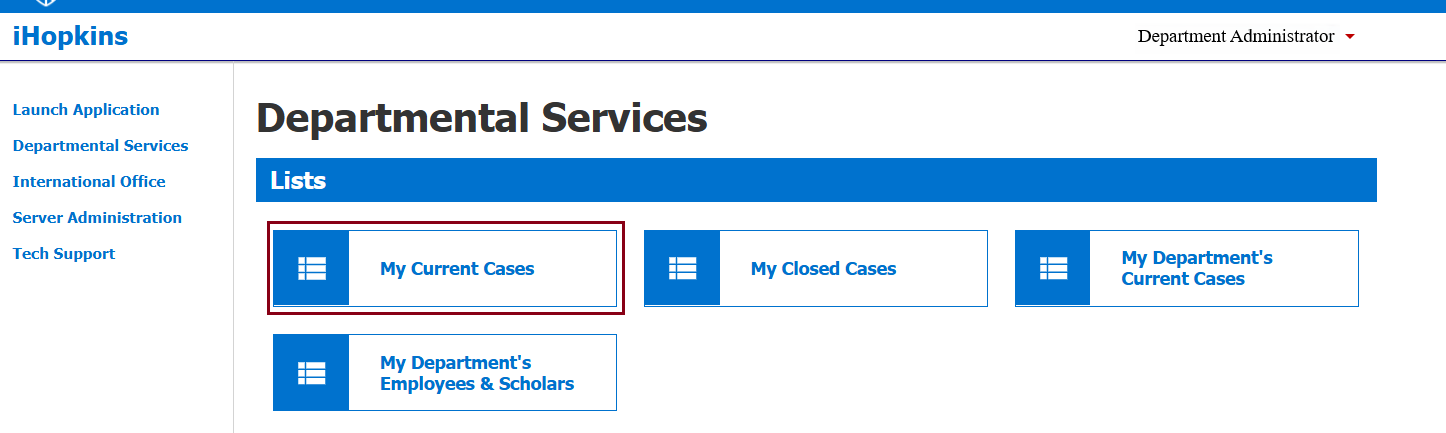
To give access to the applicant eForms, return to the applicant record you are working on in iHopkins. Tip: you will be able to locate the record under ‘My Current Cases’ under Lists. 
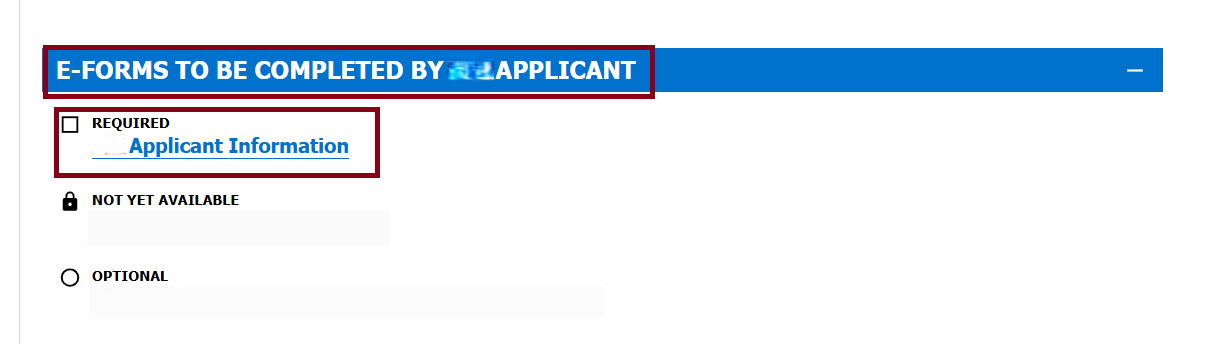
Once in the record, click on the appropriate eForm under E-FORMS TO BE COMPLETED BY APPLICANT [J-1/H-1B Applicant, Exchange Student, or Student].
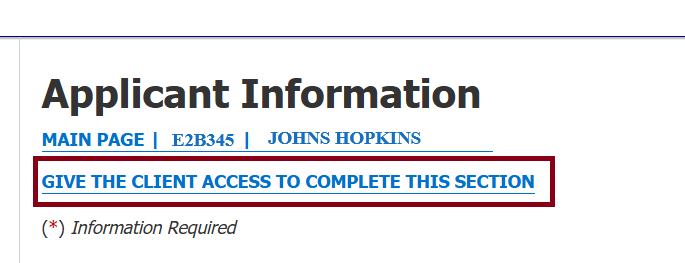
Click on ‘Give Client Access to Complete this Section.’ 
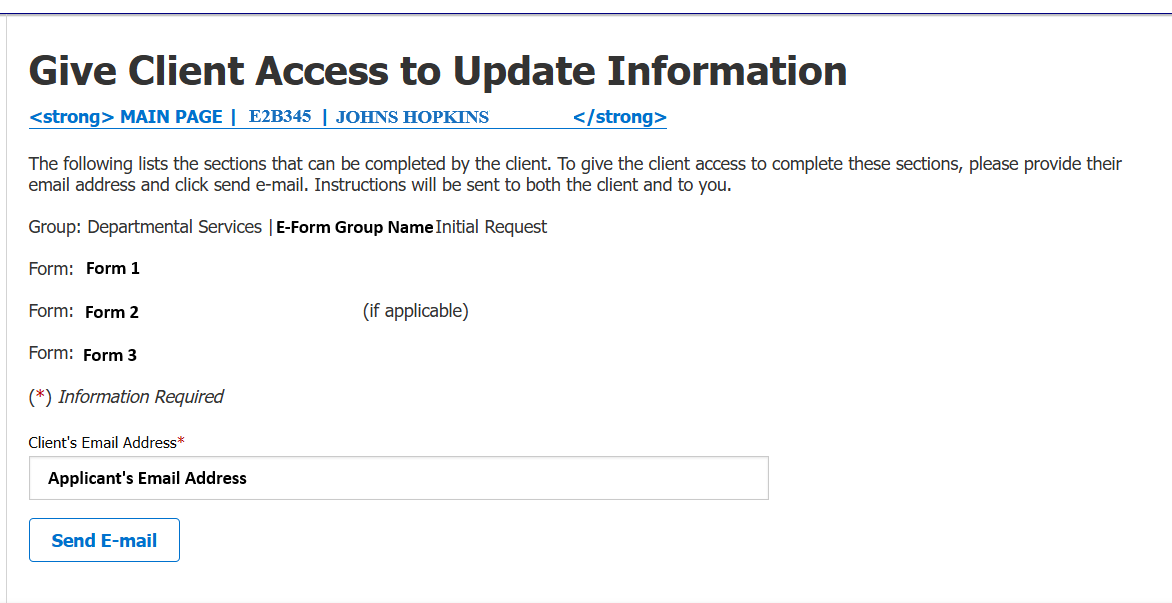
Enter their email address and click ‘Send E-mail’ button.
I am changing roles/moving departments/leaving JHU – how do I update my cases with a new contact?

Department administrators cannot update their cases with new contact information in iHopkins and should submit a request to OIS by emailing [email protected], copy [email protected] for J-1 scholar and visiting student requests and/or [email protected] for H-1B and O-1 employee requests.

Be sure to include the name and JHU email address of the new department administrator.

*Note: the new administrator must complete the appropriate iHopkins training before we can grant them access. 

I am new to my role and need access to current cases in iHopkins for my department – what do I do?

OIS is not able to grant access to cases submitted by another user from your department in iHopkins. However, you will be able to look up and access the record if you have the Name and Date of Birth of the student, scholar, or employee.

  • Login to iHopkins
  • Click the appropriate eForm group [i.e. Visiting Student J-1 Initial Request]
  • Enter the University ID and Date of Birth and click ‘Find Record’
I need to edit an eForm that has already been submitted.

Email

One of the advisors will reset the eForm to draft status. You will be able to update and resubmit the eForm.

*Note: you will need to reupload all the documents when resubmitting the eForms.

I received an email asking me to login and approve an eForm but I cannot access it.

Contact [email protected] and include the name of the eForm, the name of the student/scholar/employee that the eForm is for, and a screenshot of any error message you are receiving. 

I need to change the second approver on an eForm.

Contact [email protected] and ask for the eForm to be set to Draft status. This will allow you to edit the eForm and update the second approver contact information.  

I am getting an error message and having trouble submitting/resubmitting my eForm, what should I do?

If you are unable to submit the eForm and receive an error message:

OR

  • Clear the cache in your internet browser or try using a different browser
  • Check your internet connection to ensure you are properly connected
  • Check that your document(s):
    • are less than 1MB
    • are PDF or JPEG file
  • The file names do not contain special characters such as, semicolon, hyphen, or spaces. Consider naming files with one word. For example:
    Correct Format Incorrect Format
    HopkinsPassport.pdf Hopkins_Passport.pdf (the underscore)
    FamilyFunding.pdf Funding-Family.pdf
    (the dash)
    F1Visa.jpeg F1Visa.herc (file type)
    Affidavit.pdf JHU Affidavit of Support.pdf (spaces)
    DependentPassport Déped[email protected] (é and @)

You may be receiving error message because either you saved a draft of your eForm or OIS set it to draft status:

eForms that are in draft status do not save the document uploads. Replace ALL files using the “Replace Existing File” button next to the file upload fields. If you were instructed to change 1 document or you have been instructed to re-answer a question not pertaining to a file upload, you should replace all file uploads.