


This page is created to help Scholars and Employees to troubleshoot simple issues they may come across while submitting eForms. If you are not able to resolve the issue or find the answer to your question here, submit a ticket to the OIS Data Team by emailing [email protected]
*Attach any error messages received while working on eForm requests when submitting ticket to the OIS Data Team.*
- Go to iHopkins
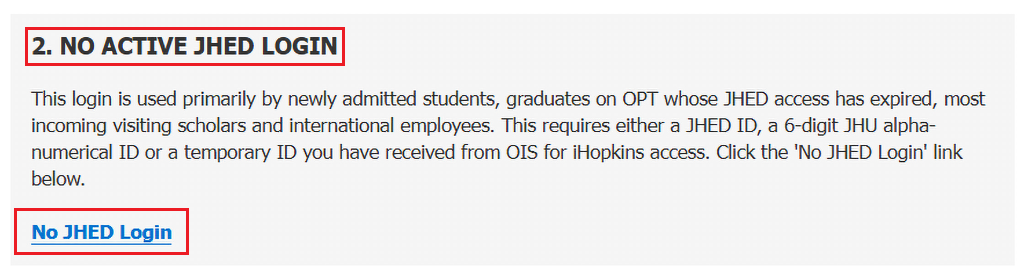
- Click ‘No JHED Login’ Under Option 2: No Active JHED Login

*Alternatively, you can use this link Login to iHopkins – Limited Services which takes you directly to the limited services login* - Click on ‘Email me my Limited Access PIN’

- Enter your University ID and click Submit
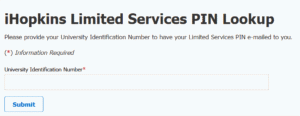
- The PIN will be sent to the email address we have on file


If you do not receive the email with Limited Access Pin,
- First, check your spam/junk folder in your email account
- If you can’t find the email with PIN information, then email [email protected] with your full name and date of birth in MM/DD/YYYY format. Your email address in iHopkins likely needs to be updated
If you are unable to submit the eForm and receive an error message:

OR

- Clear the cache in your internet browser or try using a different browser
- Check your internet connection to ensure you are properly connected
- Check that your document(s):
- are less than 1MB
- are PDF or JPEG file
- The file names do not contain special characters such as, semicolon, hyphen, or spaces. Consider naming files with one word. For example:
Correct Format Incorrect Format HopkinsPassport.pdf Hopkins_Passport.pdf (the underscore) FamilyFunding.pdf Funding-Family.pdf
(the dash)F1Visa.jpeg F1Visa.herc (file type) Affidavit.pdf JHU Affidavit of Support.pdf (spaces) DependentPassport Déped[email protected] (é and @)
You may be receiving error message because either you saved a draft of your eForm or OIS set it to draft status:

eForms that are in draft status do not save the document uploads. Replace ALL files using the ‘Replace Existing File’ button next to the file upload fields. If you were instructed to change 1 document or you have been instructed to re-answer a question not pertaining to a file upload, you should replace all file uploads.
You will receive an email when your documentation is ready to download. After you have received the email, complete the following steps:
To download your document:
- Login to iHopkins
- In the top right corner, above your name, click on the third icon for ‘Documents’

- You will see your most recent document available. If you would like to see previously issued documents that are available, select ‘No’ for Show most recent only and click on ‘Filter Documents’
- If you do not see your document for download,
- J-1 Scholars should email [email protected]
- H-1B/O-1 Employees should email [email protected]
Office of International Services


©2013-2026 The Johns Hopkins Office of International Services. All rights reserved. Baltimore, Maryland.